When you work with lots of files in SharePoint, it can be hard to find the same folders again and again. Instead of searching every time, you can create a personal bookmark using the Add shortcut to OneDrive feature.
This lets you quickly access important folders from your own OneDrive.
What does “Add shortcut to OneDrive” do?
It creates a shortcut to a SharePoint folder or document library and shows it inside your OneDrive.
Important: it does not copy the files into your OneDrive. It simply creates a link to the original location. Any changes you make are made to the original files.
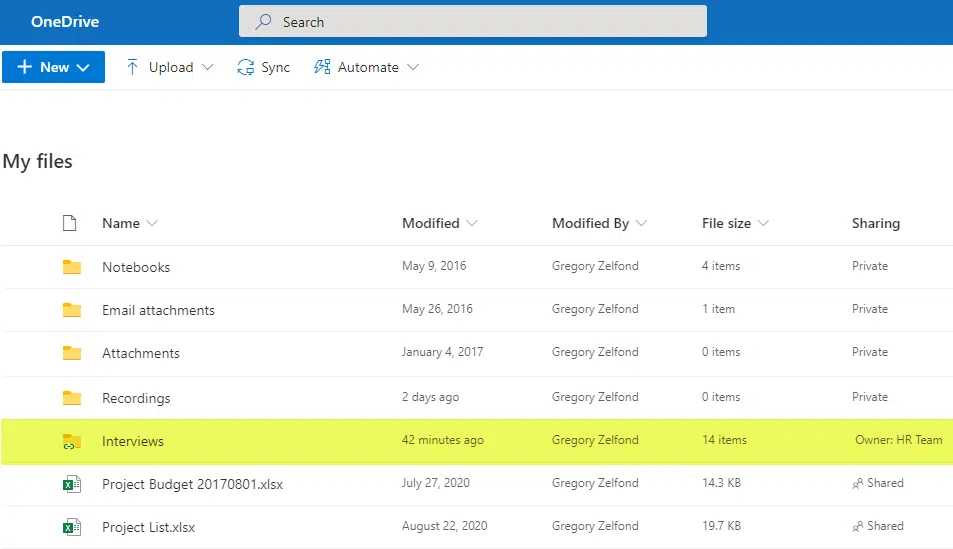
What can you shortcut ?
You can shortcut:
- Entire document libraries
- Individual folders
You cannot shortcut:
- Individual files
How to shortcut a folder
- Go to the SharePoint document library.
- Tick the box next to the folder you want.
- Click Add shortcut to OneDrive.
That folder will now appear in your OneDrive.
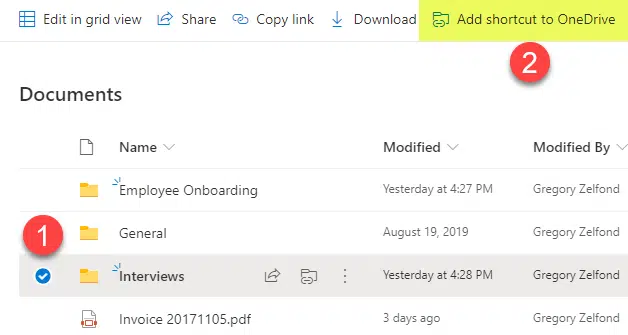
How to shortcut an entire document library
- Go to the main page of the document library.
- Do not tick any folders.
- Click Add shortcut to OneDrive.
The whole library will appear in your OneDrive.
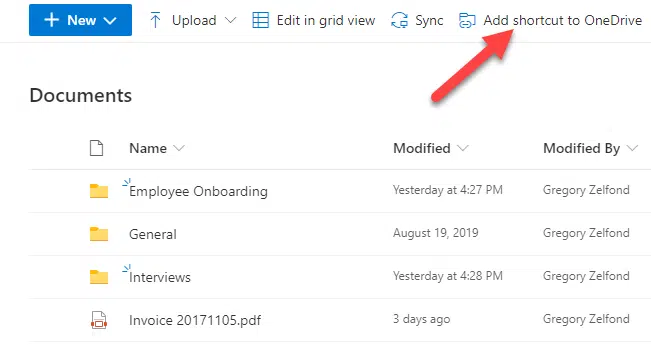
How to find your shortcut folders
- Open OneDrive.
- You’ll see the shortcut folder listed alongside your normal folders.
- It will have a small link icon on it.
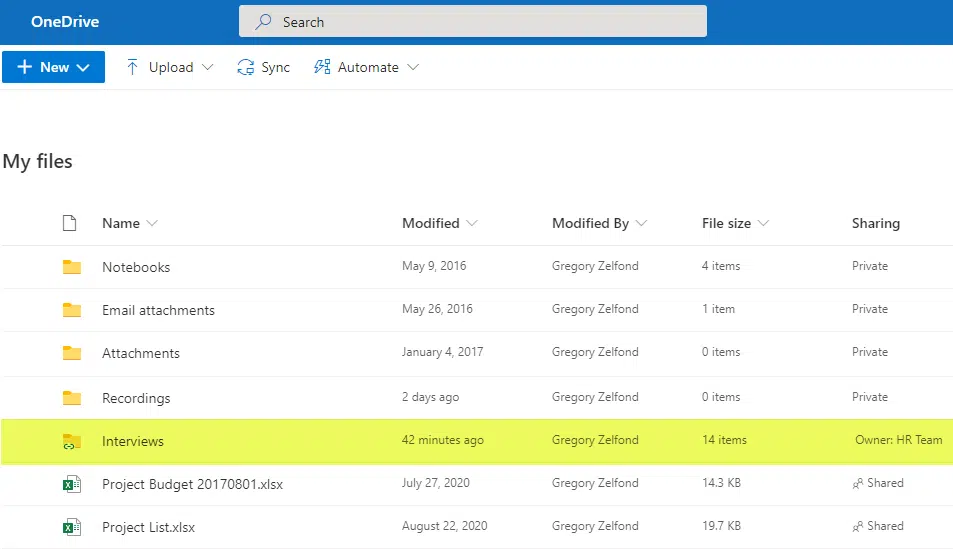
In the “Sharing” column, you’ll see the name of the SharePoint site it came from.
Remember, this is just a shortcut. The files still live in SharePoint.
How to remove a shortcut
You can remove the shortcut at any time.
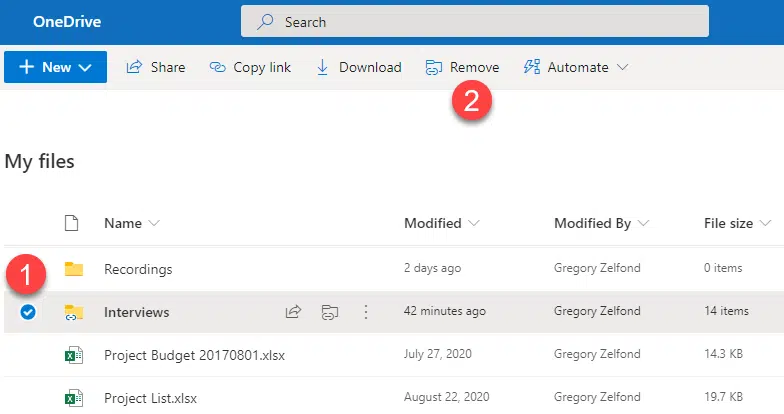
From OneDrive on the web
- Tick the box next to the shortcut.
- Click Remove.
From your computer
If you use OneDrive sync on your computer:
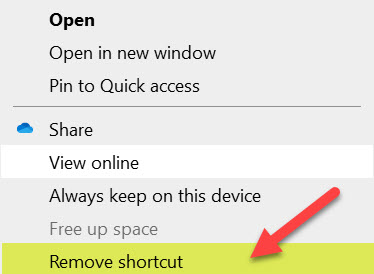
- Find the shortcut folder in File Explorer.
- Right-click it.
- Select Remove shortcut.
This only removes the shortcut. It does not delete the original files.
Important note about syncing
If you use OneDrive Sync on your computer, it’s best not to mix that with “Add shortcut to OneDrive” for the same folders. Using both at the same time can cause issues. It’s usually better to stick with one method.